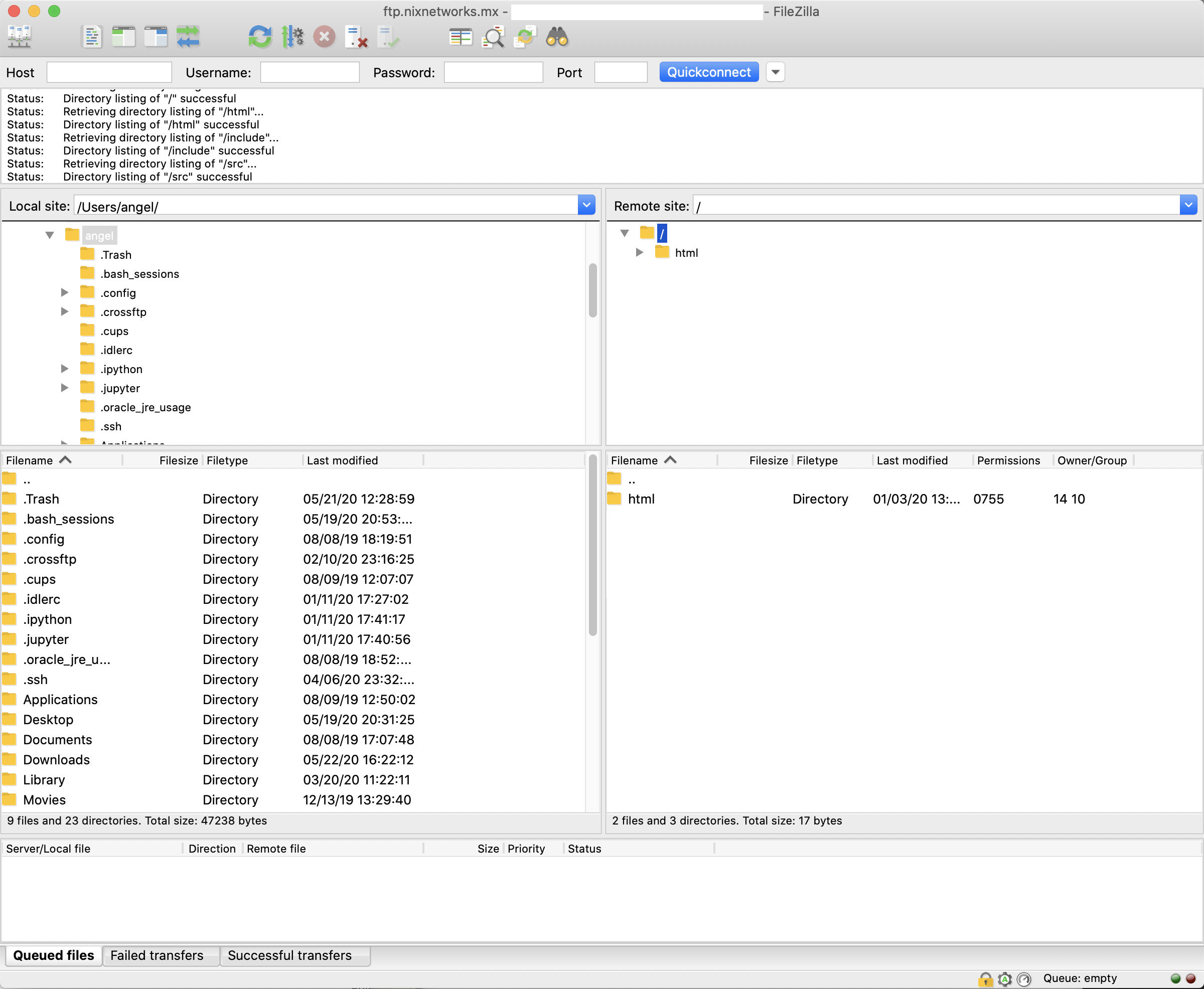

Manage your files using the **FTP service**, upload files and folders, delete them, rename them, etc., all using an FTP client. Below is the address to which you should connect.
FTP Server
- Address: ftp.nixnetworks.mx
- Port: 21
- Enable SSL
- Enable passive mode
FTP Clients
If you do not have an FTP client, you can use any from the following list.
Connection Instructions using FileZilla
To connect to the FTP servers using FileZilla, follow these steps:
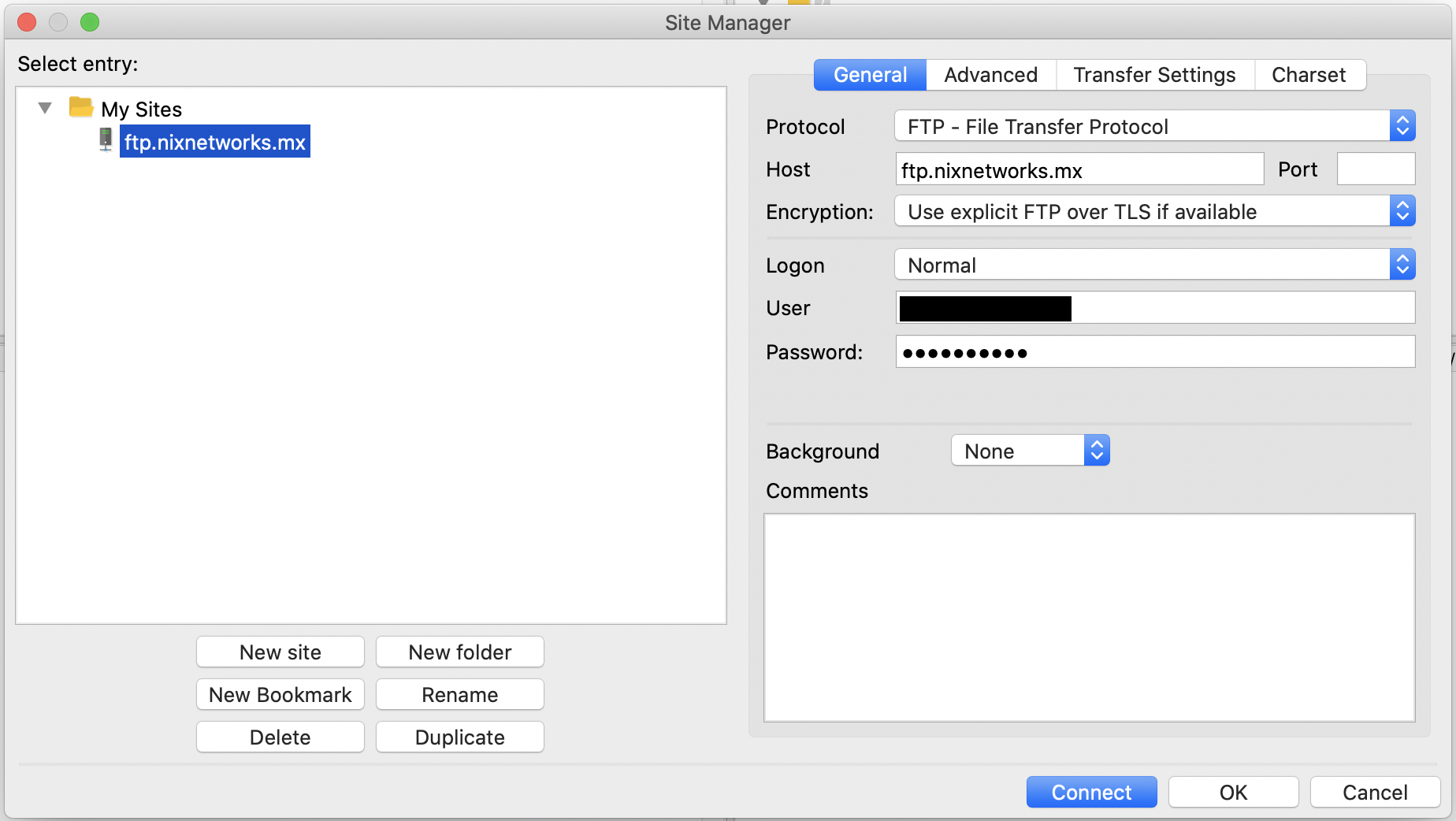
Step 1. Register the site in the Site Manager
You must enter your username and password exactly as you received them via email, including uppercase letters, lowercase letters, numbers, and special characters. You must enable the **Encryption** option as shown in the screenshot.
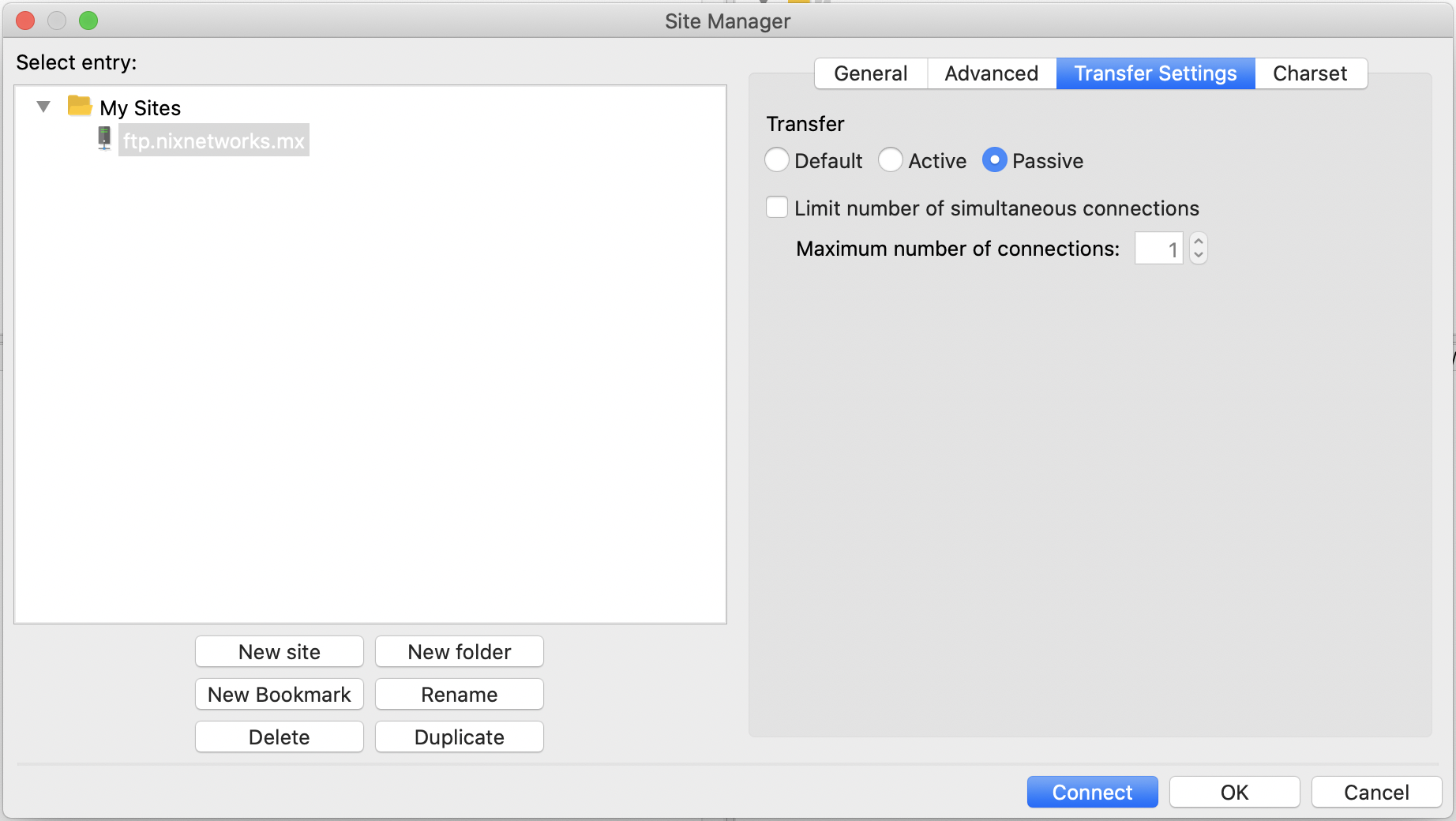
Step 2. Confirm that Passive mode is used
Select it if it is not selected by default.
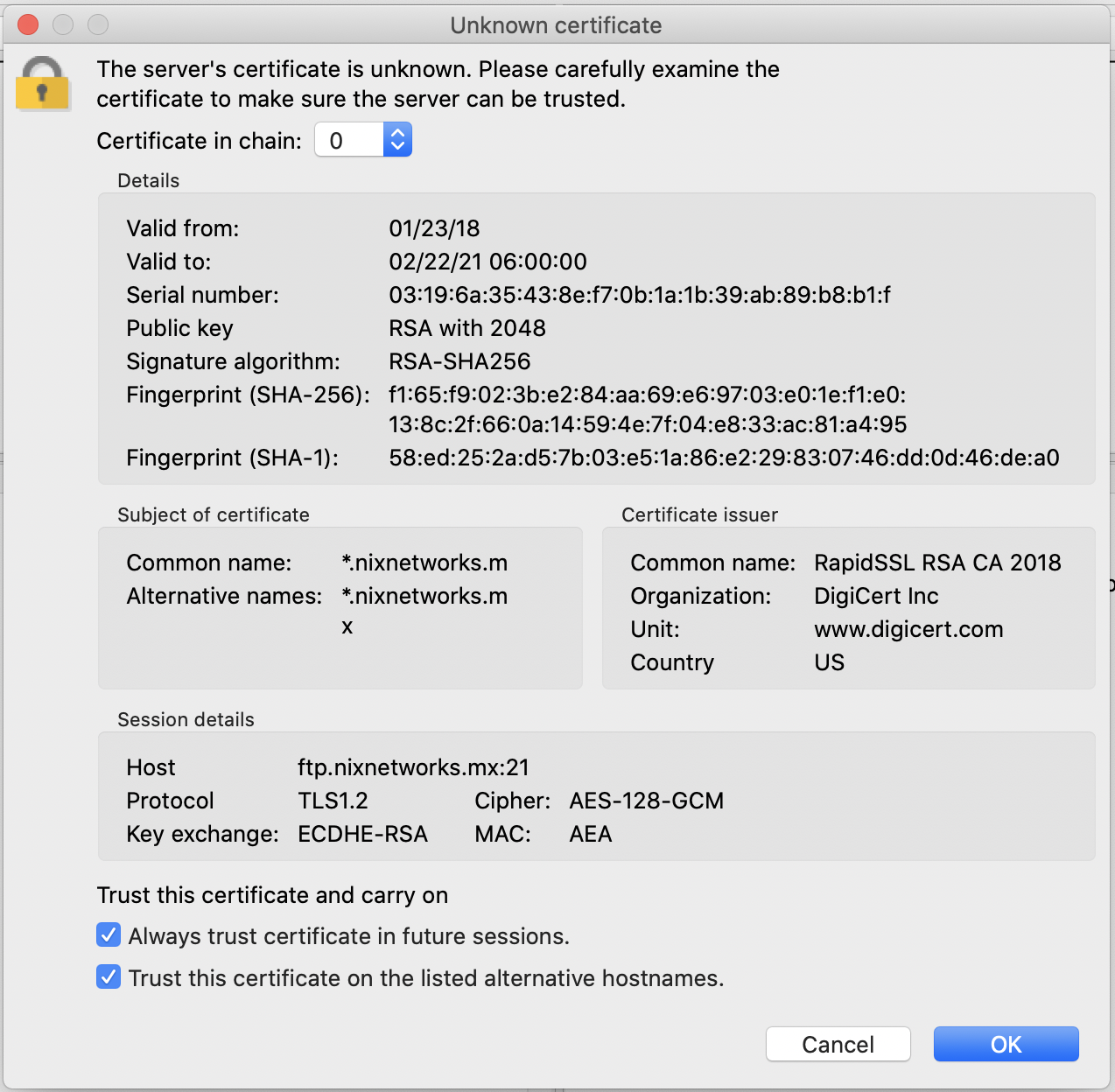
Step 3. Connect by double-clicking the site.
If this is the first time you are connecting to the server, you will be asked to **accept the certificate** as shown in the screenshot.
Step 4. Manage files on the server.
Once connected, as seen in the screenshot, you can now copy files from your computer (left-side panel) to the server (right-side panel).